

Oops! Something went wrong with the browser.
Please try again. If the issue persists, contact support@logicimtech.com and include error code .
How to sign in with two-factor authentication (2FA) or a recovery code
Introduction
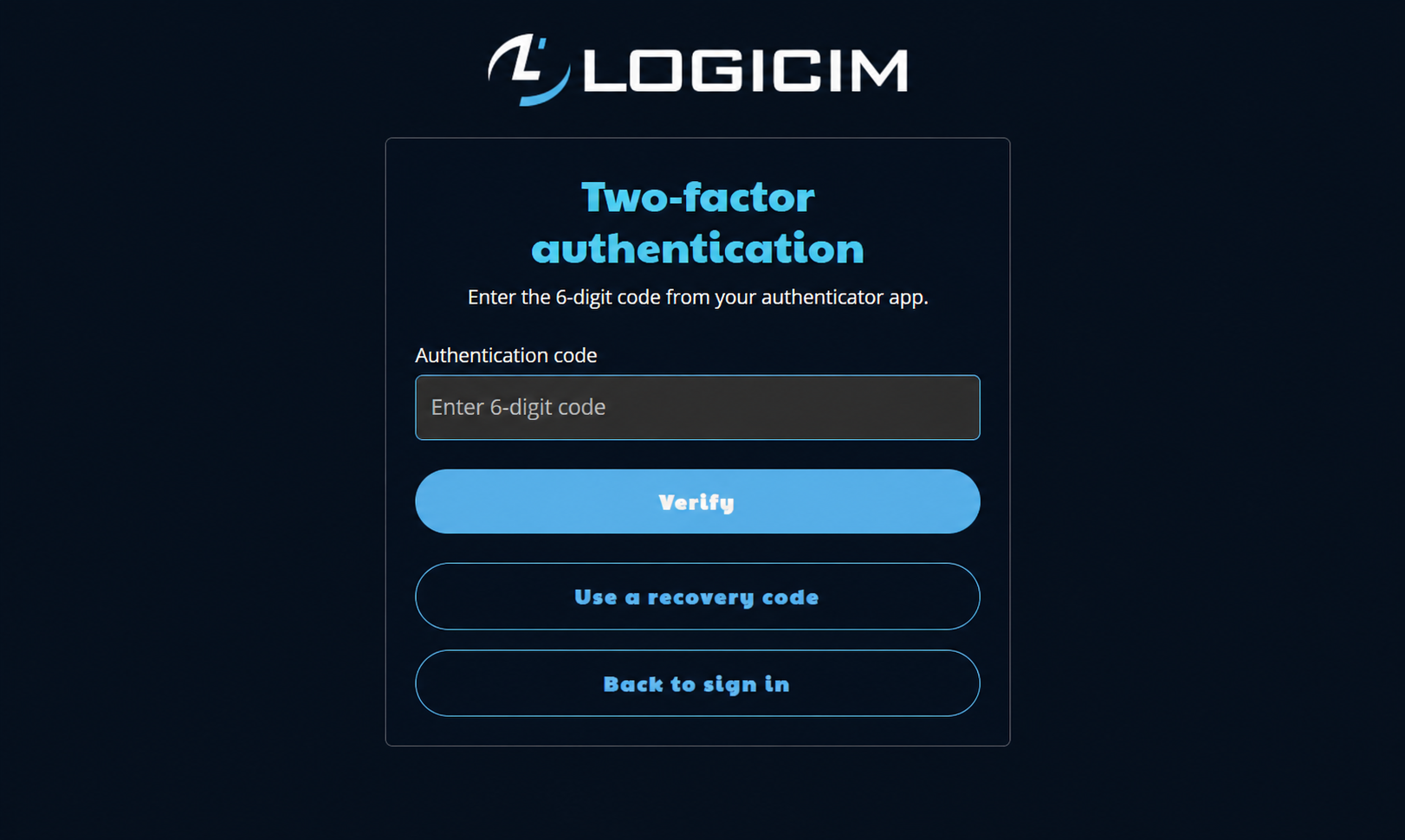
This tutorial explains how to complete Logicim sign-in after two-factor authentication is enabled on your account. You can use the current code from your authenticator app or an unused recovery code.
Before you begin
- Have access to the authenticator app connected to your Logicim account, or have one of your saved unused recovery codes.
- Recovery codes can be used only once.
Sign in with two-factor authentication
- Sign in to your Logicim account with your usual credentials.
- On the Two-factor authentication screen, open your authenticator app.
- Enter the current six-digit code in the Authentication code field.
- Click Verify.
If you cannot access your authenticator app, click Use a recovery code.
Sign in with a recovery code
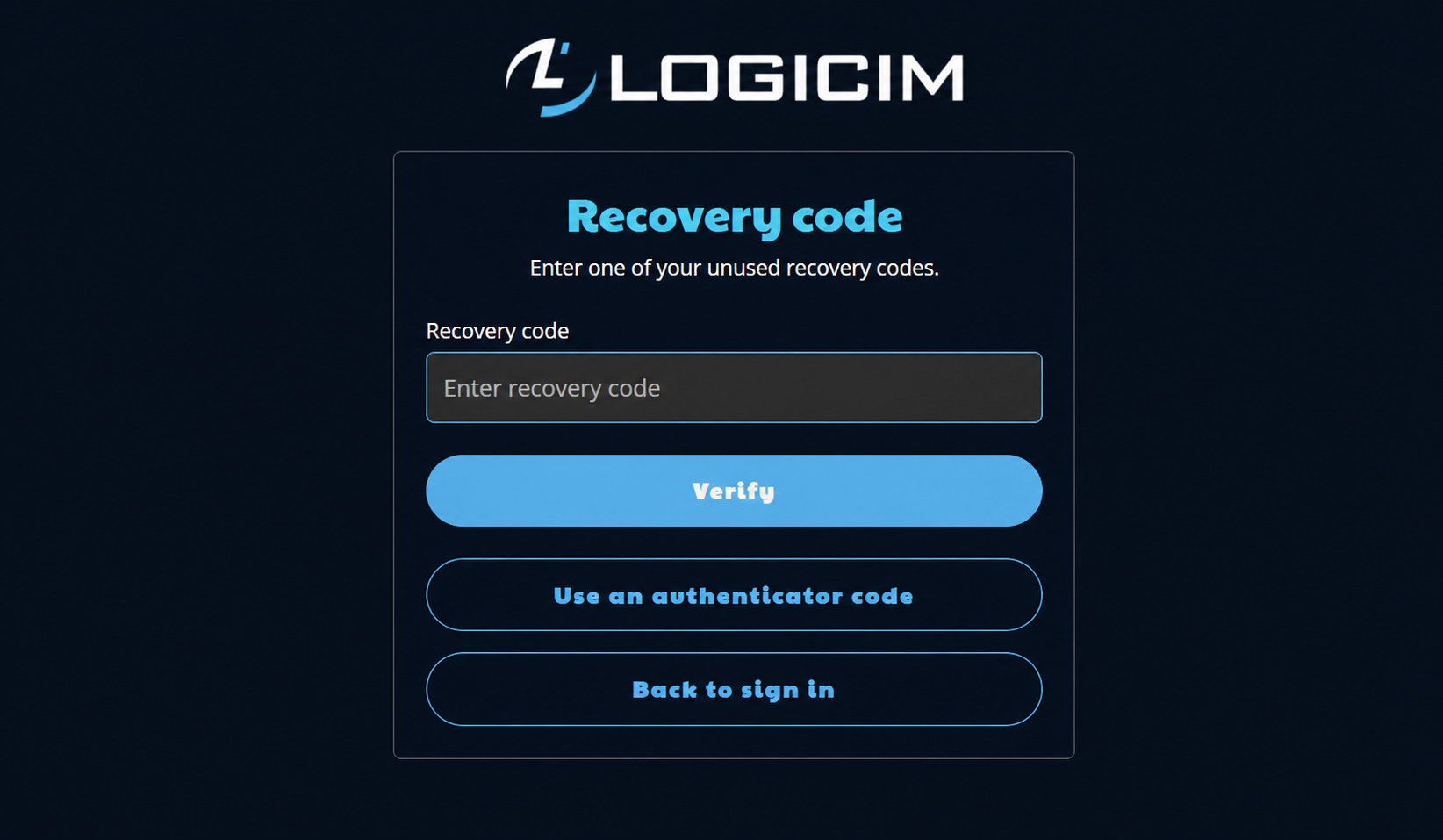
- On the Two-factor authentication screen, click Use a recovery code.
- Enter one of your unused recovery codes in the Recovery code field.
- Click Verify.
To return to the six-digit code screen, click Use an authenticator code.
Troubleshooting
- The authenticator code expired: Wait for the next six-digit code and enter it. Authenticator codes refresh every 30 seconds.
- A recovery code does not work: Each recovery code can be used only once. Try another unused code.
- You cannot access your authenticator app: Click Use a recovery code and enter a saved unused code.
- Your old codes stopped working after an authenticator reset: Resetting the authenticator replaces the previous setup. The old authenticator and old recovery codes no longer work.
Supporting Articles
How to setup Two-factor Authenticator (2FA) on my Logicim Account?
Related articles
Edited: Tuesday, September 08, 2026
Was this article helpful?
Thank you! Your feedback matters.
We'd love to hear your thoughts! Please provide a comment before submitting.