

Oops! Something went wrong with the browser.
Please try again. If the issue persists, contact support@logicimtech.com and include error code .
How to resolve "Access is denied" issue when trying to connect to Sage 50 Canadian edition
How to resolve "Access is denied" in Logicim XLGL
Some users may encounter an "Access is denied" message when attempting to connect to a Sage 50 Canadian Edition company using Logicim XLGL. This issue is typically caused by security software or system policies blocking access to necessary executable files.
If you encounter this issue, you may require assistance from your Information Technology (IT) department.
Review Windows Security Protection History
Before making policy changes, check Windows Security to determine whether Microsoft Defender Attack Surface Reduction (ASR) is blocking Logicim XLGL.
- Attempt to connect to your Sage 50 Canadian Edition company in Logicim XLGL.
- If the connection fails with "Access is denied", open Windows Security.
- Select Protection history.
- Look for an entry indicating that Microsoft Defender blocked
EXCEL.EXEfrom launchingSimplyAccountingConnect.exe. - If you find a related Microsoft Defender entry, continue with the policy configuration steps below.
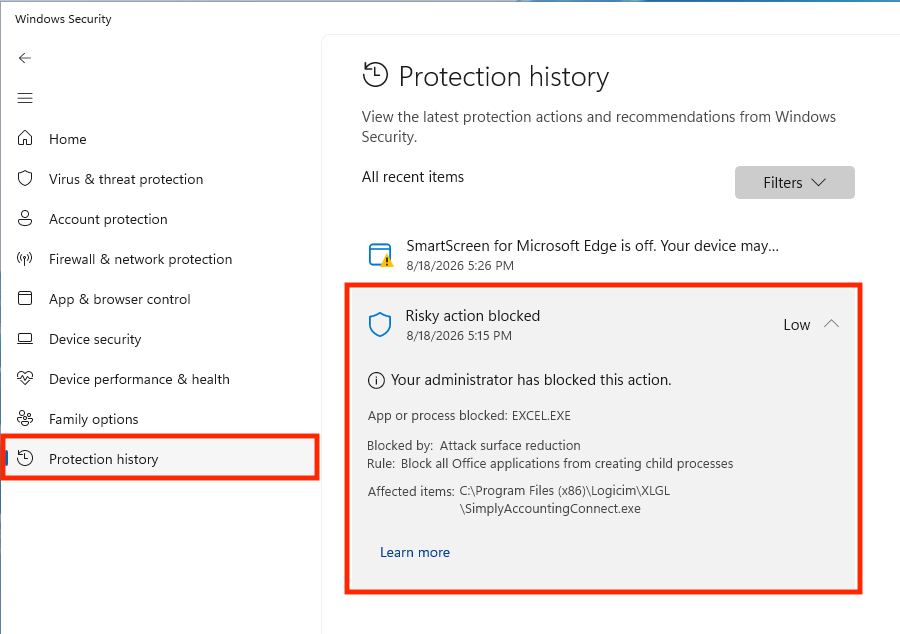
Note: Windows Security Protection History is one of the first places to check when troubleshooting this issue.
Configure the Microsoft Defender ASR exclusion
This issue may be caused by a Microsoft Defender Attack Surface Reduction (ASR) policy blocking the Logicim executable.
Important: These changes should be performed by qualified IT personnel and validated against your organization's security policies.
- Run
gpedit.msc. - Go to Computer Configuration → Administrative Templates → Windows Components → Microsoft Defender Antivirus → Microsoft Defender Exploit Guard → Attack Surface Reduction.
- Open Apply a list of exclusions to specific attack surface reduction (ASR) rules.
- Select Enabled.
- Click Show....
- Find or add the following Rule GUID:
D4F940AB-401B-4EFC-AADC-AD5F3C50688A. - Set its value to
C:\Program Files (x86)\Logicim\XLGL\SimplyAccountingConnect.exe. - If Logicim XLGL was installed in a different location, use the actual installation path for
SimplyAccountingConnect.exe. - Click OK.
- Click Apply or OK to save the policy change.
- Restart Microsoft Excel and try connecting again.
Note: If your computer is managed through Active Directory Group Policy, Microsoft Intune, or Microsoft Defender for Endpoint, local policy changes may not work or may be automatically overwritten by organizational policies. In these environments, your IT department should configure the equivalent policy through Group Policy or Intune.
Additional troubleshooting
Run the executable manually
- Open Windows Explorer and go to
C:\Program Files (x86)\Logicim\XLGL. - Locate
SimplyAccountingConnect.exeand double-click it. - If an error message appears, the issue may be related to your user permissions.
Temporarily disable security software
- Temporarily disable your antivirus, antimalware, and other security software, including Windows Defender.
- Attempt to connect to your data.
- If the connection succeeds, re-enable your security software one product or feature at a time to identify what is blocking Logicim XLGL.
- Make the required security-software changes to allow the Logicim executable to run.
Review Windows Event Viewer
- Open Windows Event Viewer and look for related error messages, especially in the Microsoft Windows Defender logs.
- Use the event information to help diagnose the issue.
- Contact your IT department for assistance as needed.
Additional information
- Ensure that Logicim XLGL is up to date.
- Renew your update subscription when required.
- Review available information about Logicim XLGL updates.
References
Related articles
Edited: Thursday, September 24, 2026
Was this article helpful?
Thank you! Your feedback matters.