

Oops! Something went wrong with the browser.
Please try again. If the issue persists, contact support@logicimtech.com and include error code .
How to setup Two-factor Authenticator (2FA) on my Logicim Account?
Introduction
Two-Factor Authentication (2FA) adds an extra layer of security to your Logicim account. Once enabled, signing in requires both your password and a code from an authenticator app, such as Google Authenticator or Microsoft Authenticator. This setting is turned on by default.
Enabling 2FA
- Go to your Profile.
- Click Settings.
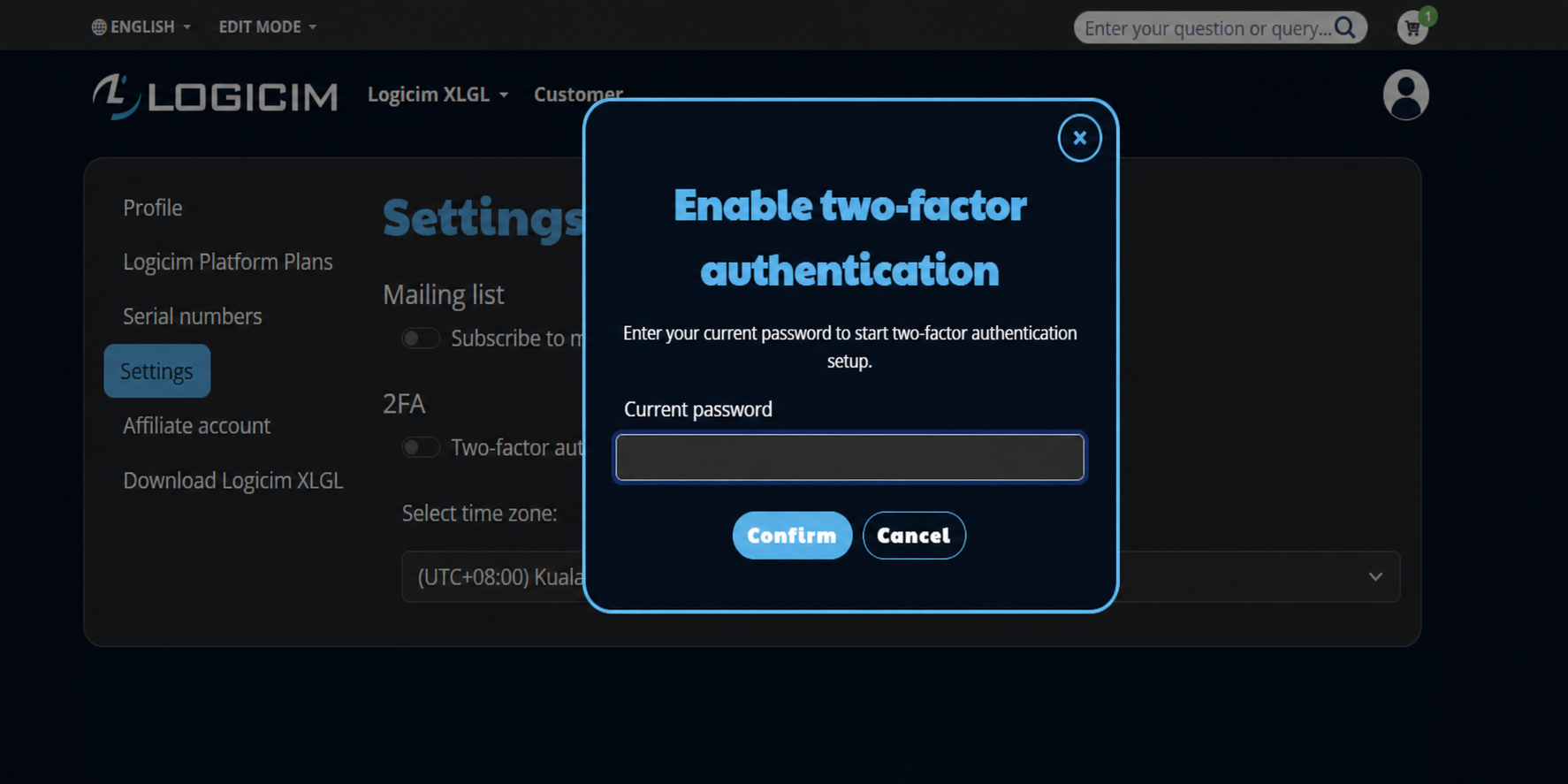
- Under 2FA, toggle Two-factor authentication on.
- Enter your current password in the Enable two-factor authentication dialog.
- Click Confirm.
Setting Up Your Authenticator App
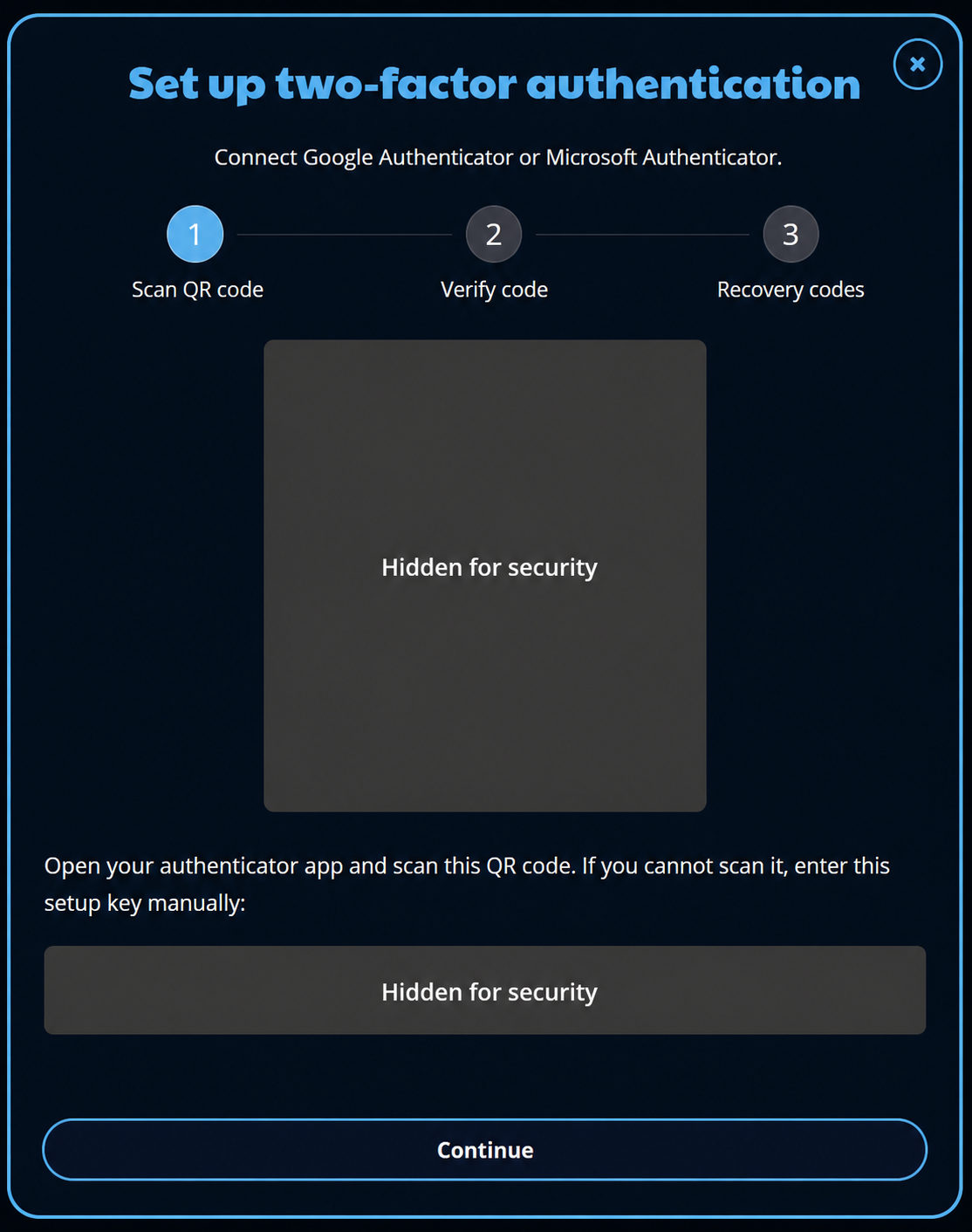
The Set up two-factor authentication dialog guides you through three steps: Scan QR code → Verify code → Recovery codes.
Step 1: Scan QR Code
- Open Google Authenticator or Microsoft Authenticator on your phone.
- Scan the QR code displayed on screen.
- If you cannot scan it, manually enter the setup key shown below the QR code.
- Click Continue.
Security Note: The QR code and setup key are hidden in the screenshot because they are unique to an account.
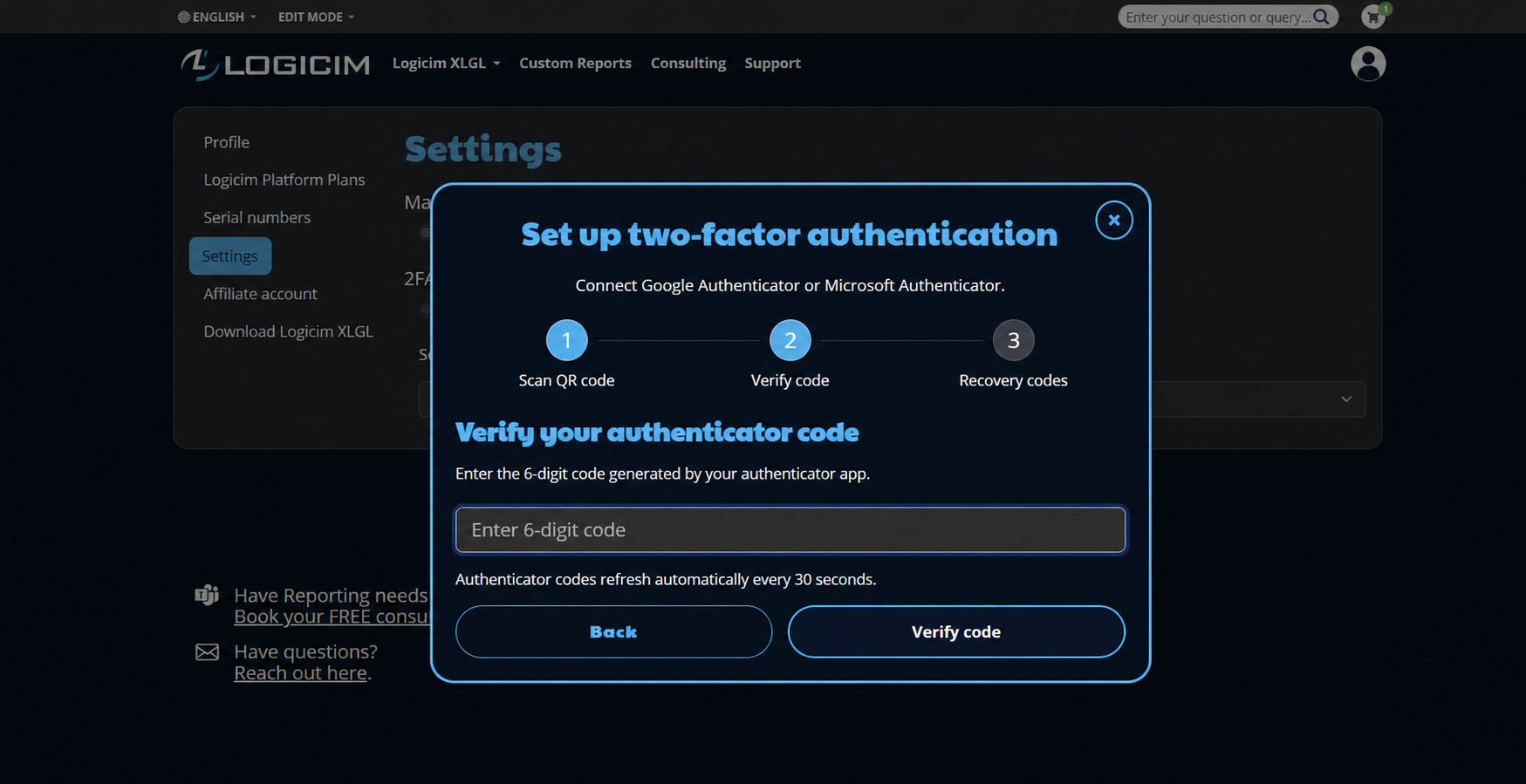
Step 2: Verify Code
- In your authenticator app, find the 6-digit code generated for your Logicim account.
- Enter it in the Enter 6-digit code field.
- Click Verify code.
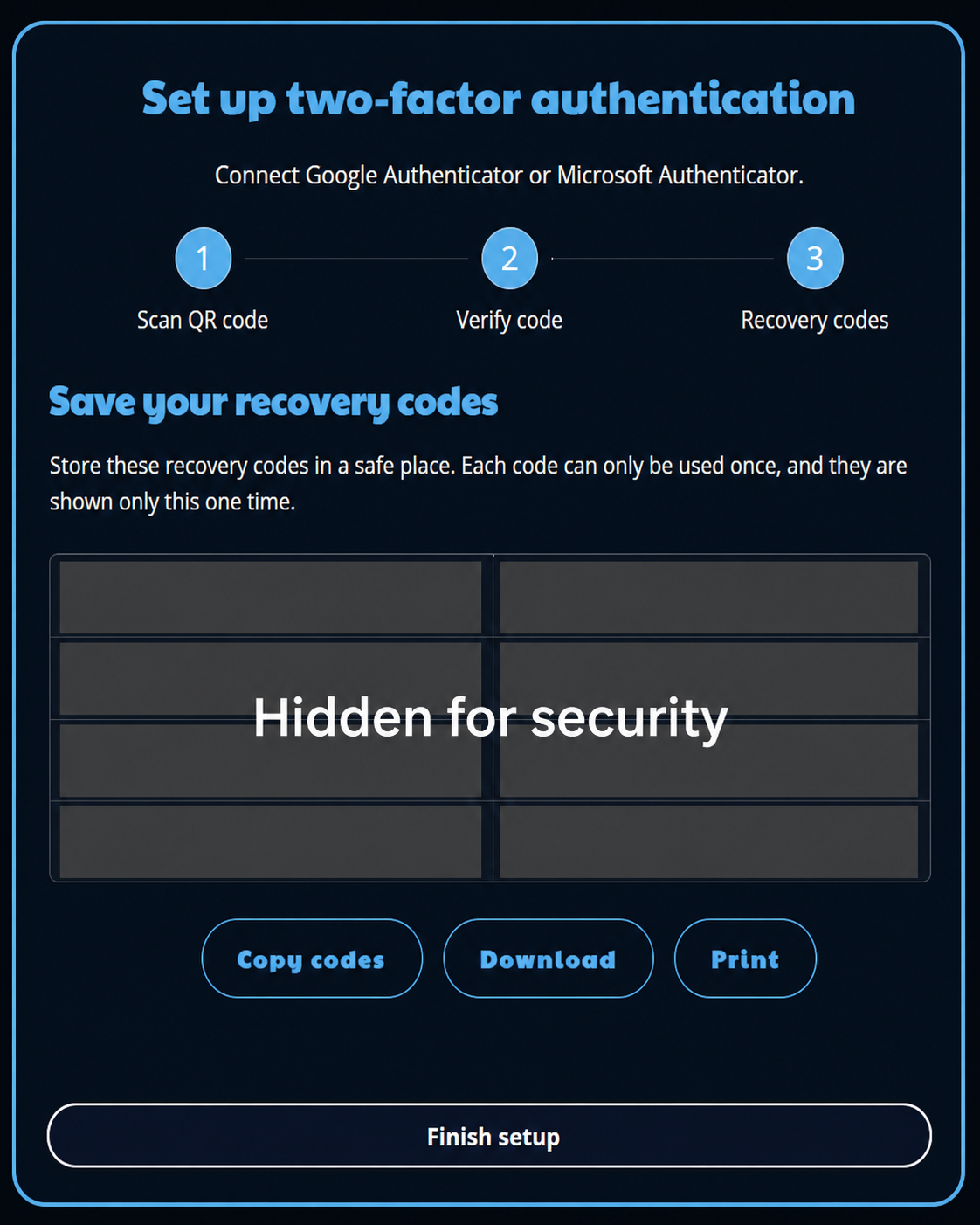
Step 3: Save Your Recovery Codes
- A set of one-time use recovery codes is displayed.
- Store the codes in a safe place. Each code can be used only once, and the list is shown only at this step.
- Use Copy codes, Download, or Print to save them.
- Click Finish setup.
Security Note: The recovery codes are hidden in the screenshot. Never share your own recovery codes.
Confirming 2FA Is Active
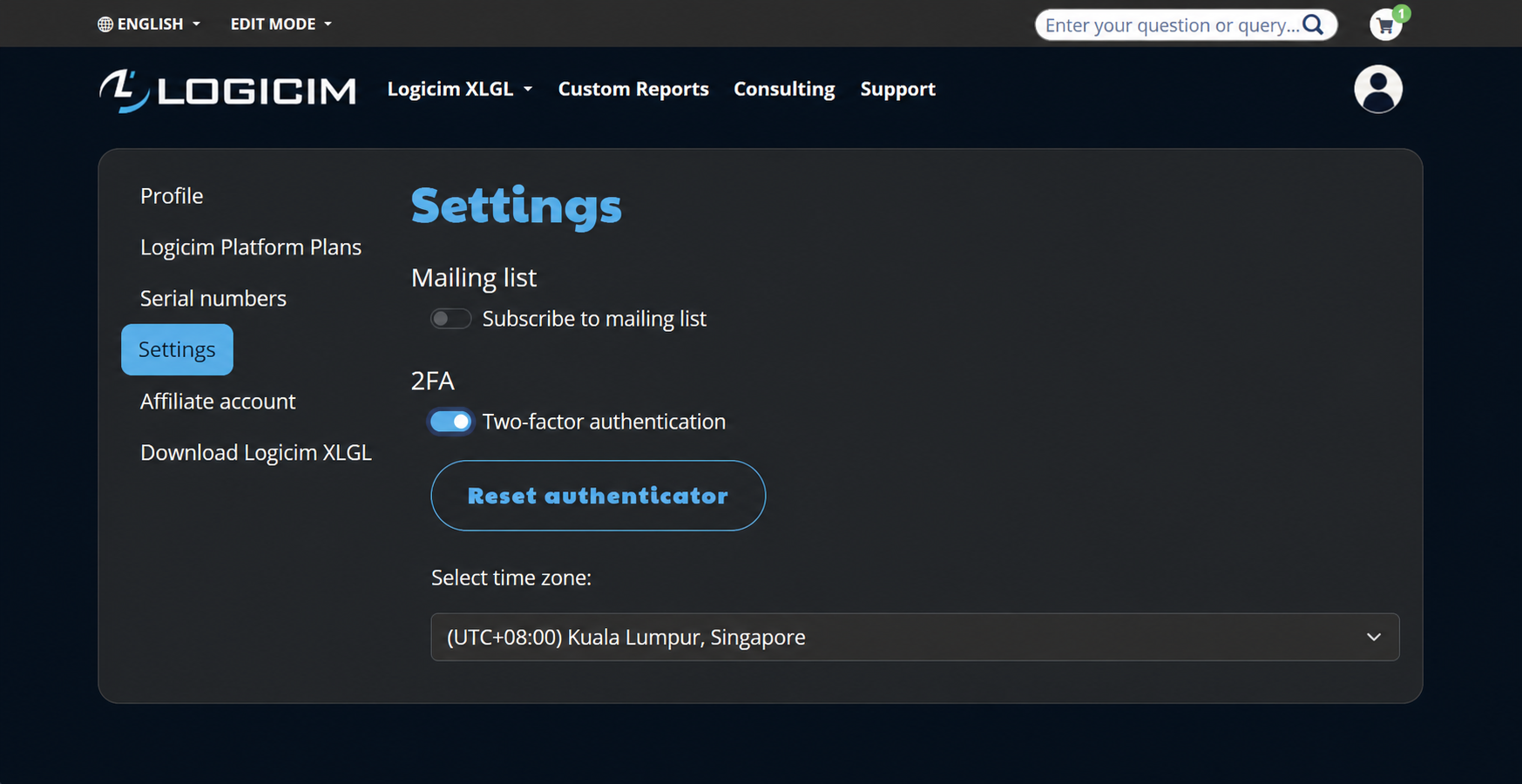
After setup, return to Logicim Account > Settings. The Two-factor authentication toggle is on and the Reset authenticator button is available.
Reset Your Authenticator
- Go to Account > Settings.
- Click Reset authenticator.
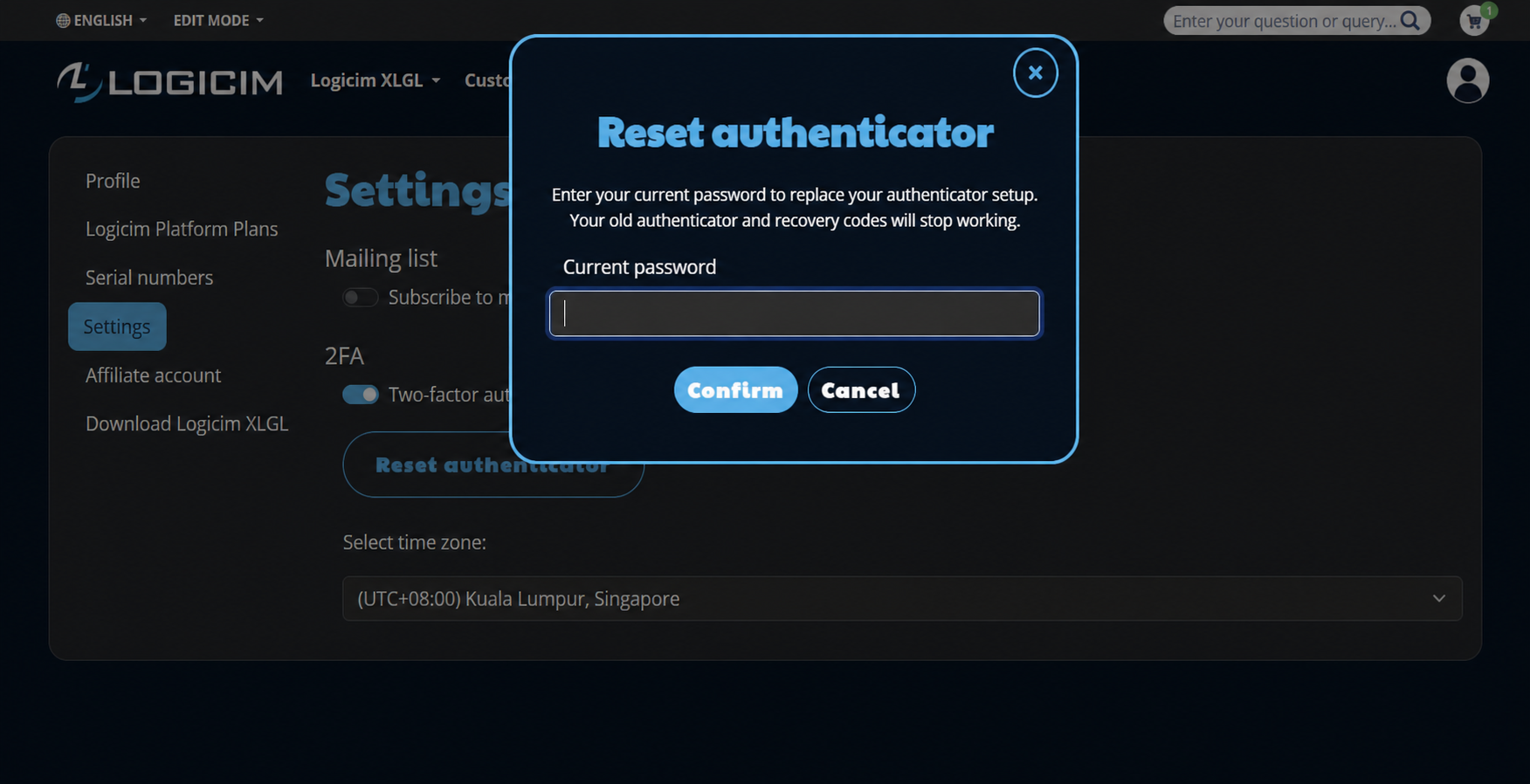
- Enter your current password.
- Click Confirm, then complete the setup steps again.
Resetting replaces your current authenticator setup. Your old authenticator and recovery codes will stop working.
Disable 2FA
- Go to Account > Settings.
- Toggle Two-factor authentication off.
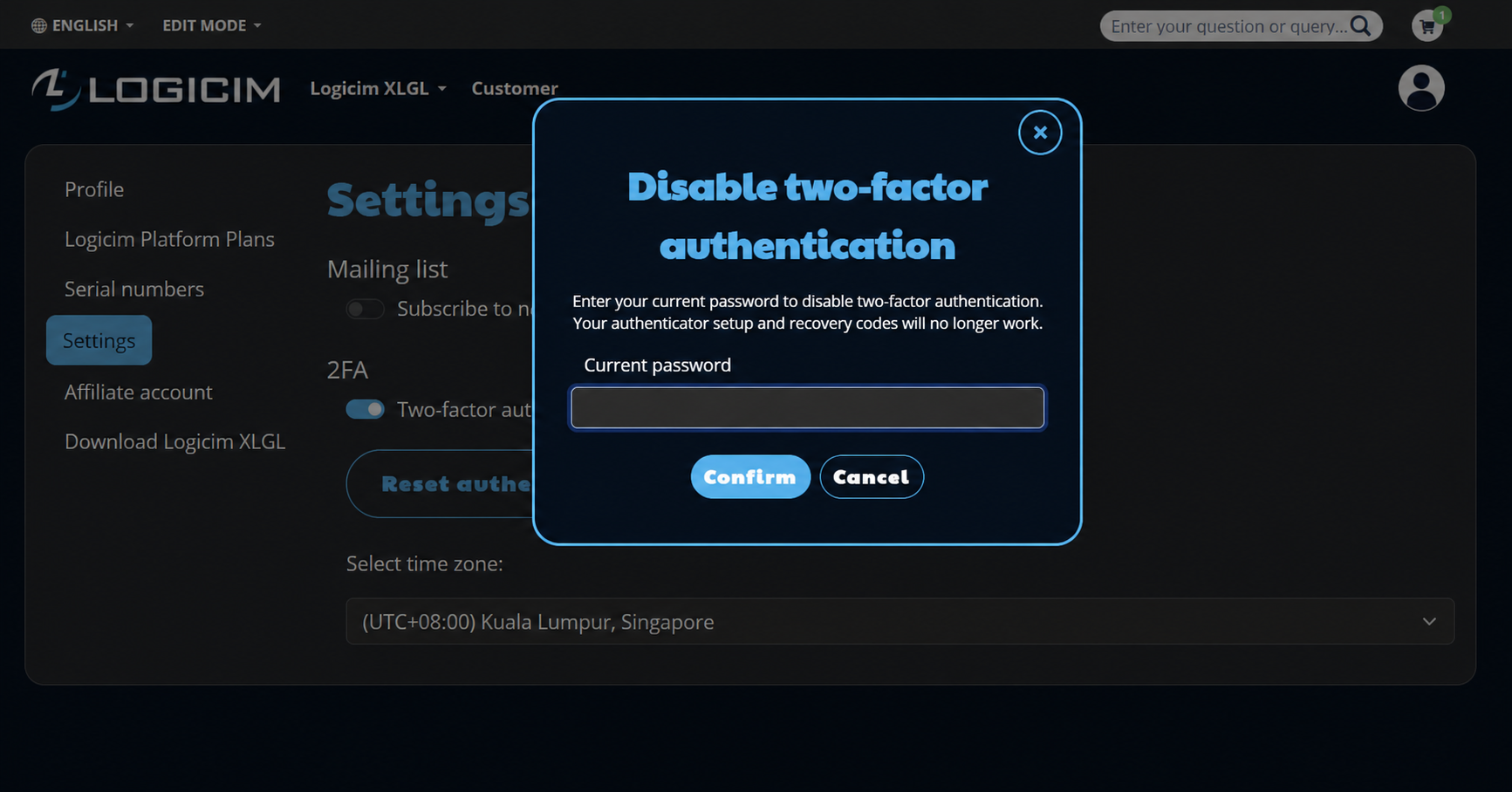
- In the Disable two-factor authentication dialog, enter your current password.
- Click Confirm.
Disabling 2FA makes the current authenticator setup and recovery codes stop working.
Supporting Articles
How to sign in with two-factor authentication (2FA) or a recovery code
Related articles
Edited: Tuesday, September 08, 2026
Was this article helpful?
Thank you! Your feedback matters.