

Oops! Something went wrong with the browser.
Please try again. If the issue persists, contact support@logicimtech.com and include error code .
Logicim's ready-to-use Sage 50 US Sales and Outstanding Balances
Sales and Outstanding Balances
Sales and Outstanding Balances is an Accounts Receivable Ready-to-Use Report for Sage 50 US. It shows customer sales and unpaid balances as of the date selected on the Instructions worksheet.
Prerequisites
- Latest Logicim XLGL version.
- Microsoft Excel 2016 or higher.
- A Sage 50 US company connected through Logicim XLGL.
- Access to the Accounts Receivable data used by the Sales and Outstanding Balances workbook.
What the Report Does
The Report uses the Instructions worksheet to set an as-of date, then displays customer sales and balance information on the Report worksheet. The visible output includes the company name, the title Customer Sales and Outstanding Balances Report, an as-of date line, and columns for Customer ID, Customer Name, Customer Since, Balance, Sales Amount, and YTD Sales. The hidden Data worksheet contains supporting customer fields, including Customer ID, Customer Name, Customer Since, Balance, Sales Amount, Transaction Date, and YTD Sales.
How to Use the Report
Step 1) On the Instructions worksheet, enter the as-of date in C9.
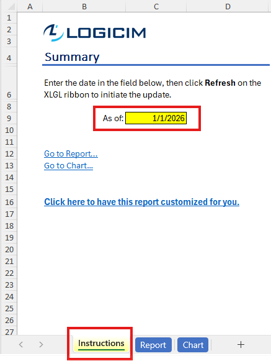
Step 2) Click Refresh on the XLGL ribbon to update the Report.

Step 3) Click Go to Report... on the Instructions worksheet to move to the Report output.
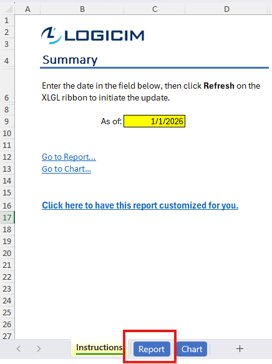
Step 4) Review the Report worksheet to compare each customer’s sales amount, year-to-date sales, and outstanding balance as of the selected date.
Step 5) Use the Grand Total row to review the total balance, sales amount, and YTD sales shown in the workbook.
Customization Options
Change the as-of date on the Instructions worksheet to review a different date, then refresh the Report. You can also use standard Excel formatting, sorting, and filtering on a copy of the workbook. For additional columns, different grouping, new calculations, or a redesigned Accounts Receivable layout, use the customization link on Instructions or request a Custom Report from Logicim.
Common Use Cases
- Review customer outstanding balances alongside sales activity.
- Identify customers with unpaid balances as of a selected date.
- Compare sales amount and YTD sales by customer.
- Support Accounts Receivable review by checking the Grand Total row for balance and sales totals.
Troubleshooting
- If the as-of date in the Report is not what you expected, check C9 on the Instructions and refresh the Report.
- If values appear stale or unexpected, confirm that Excel is connected to the correct Sage 50 US company through Logicim XLGL, then refresh again.
- If a customer or balance is missing, confirm that the selected as-of date matches the activity you expect to review.
- If you need fields that are not visible in the Report, request a Custom Report rather than editing workbook formulas.
FAQs
- Q: Which date does this Report use? A: It uses the as-of date entered in C9 on the Instructions worksheet.
- Q: Where do I review the customer balances? A: Click Go to Report... and review the Report worksheet.
- Q: Which customer values are visible? A: The visible output includes Customer ID, Customer Name, Customer Since, Balance, Sales Amount, and YTD Sales.
- Q: Can Logicim customize this Report? A: Yes. Use the customization link on Instructions or request a Custom Report.
Best Practices
- Confirm the Sage 50 US company before refreshing the workbook.
- Review the as-of date before using the Report for Accounts Receivable review.
- Refresh the Report after changing C9 on Instructions.
- Use a copy of the workbook before applying Excel formatting, sorting, or filtering changes.
- Compare the Grand Total row to the expected totals for customer balances and sales.
Related articles
Edited: Monday, August 31, 2026
Was this article helpful?
Thank you! Your feedback matters.