

Oops! Something went wrong with the browser.
Please try again. If the issue persists, contact support@logicimtech.com and include error code .
Logicim's Ready-to-Use Sage 50 US Balance Sheet
Introduction
The balance sheet shows a company’s assets, liabilities, and equity at a specific point in time.
Prerequisites
- Sage 50 US edition
- View other prerequisites in the Requirement section here
What the Report Does
The report shows key financial and transactional data such as dates, invoice numbers, customer information, descriptions, and monetary amounts, allowing users to track and analyze invoicing activity and totals over a selected period.
How to Use the Report
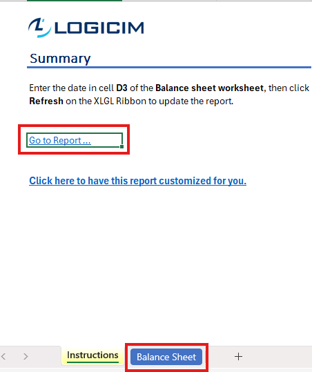
Step 1: In the Balance Sheet tab, put the date in D3.

Step 2: Click Refresh on the XLGL ribbon.

Step 3: Review the result in the Balance Sheet tab
Customization Options
- Adjust the desired year in the Parameters sheet to generate data for a different period.
- Add additional years to the Yearly sheet. To add a new year:
- Copy column H (last year’s data).
- Paste it into the desired column.
Common Use Cases
- To review and monitor invoice activity per period
- To analyze total invoice amounts and tax breakdowns
- To track customer transactions and invoice details
Troubleshooting
Issue: No data is populated.
Solution: Verify that the input parameters are correct and that the selected date range contains existing records.
FAQs
Q: How can I see the account number?
A: Unhide column B to display it.
Best Practices
- Save a backup copy of the Report before making significant changes.
- Regularly review the report to track progress and identify trends early.
- Customize the report to focus on key performance indicators relevant to your business.
References
Related articles
Edited: Thursday, August 27, 2026
Was this article helpful?
Thank you! Your feedback matters.