

Oops! Something went wrong with the browser.
Please try again. If the issue persists, contact support@logicimtech.com and include error code .
Logicim's Ready-to-Use Sage 50 US Cash Flow-Enhanced
Cash Flow-Enhanced
Cash Flow-Enhanced displays cash flow activity for a selected period and shows debit and credit transaction values for each line.
Prerequisites
- Microsoft Windows 10 Pro, Windows 11 Pro, or Windows terminal server (2012 and above)
- Microsoft Office 365
- Sage 50 US edition (2021 and above)
- Internet connection
What the Report Does
The Instructions worksheet directs you to enter dates in E2 and E3 of the Cash Flow worksheet. The Cash Flow worksheet shows the company name, a period heading, Cash Flows from operating activities, Cash Flows from investing activities, Cash Flows from financing activities, Cash Balance at End of Period, and Cash Balance at Beginning of Period. The workbook uses formulas such as XUSFinancial to populate financial lines, and the hidden Cash worksheet lists cash account labels, including Regular Checking Account, Payroll Checking Account, and Savings Account.
How to Use the Report
Step 1: Review the Instructions worksheet, then go to the Cash Flow worksheet to enter the reporting dates in E2 and E3.
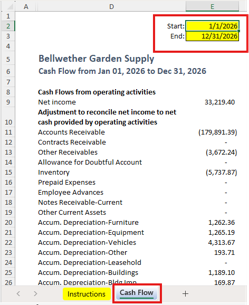
Step 2: Click Refresh on the XLGL ribbon after setting the dates.

Step 3: Review the Cash Flow worksheet for operating, investing, and financing activity, then compare the beginning and ending cash balance lines.
Customization Options
Change E2 and E3 on the Cash Flow worksheet to review a different period, then refresh the workbook. You can use standard Excel formatting on a copy of the workbook. For account mapping changes, section changes, additional cash accounts, or changed calculations, request a Custom Report from Logicim.
Common Use Cases
- Review operating, investing, and financing cash flow activity for a selected period.
- Compare the cash balance at the beginning and end of the period.
- Review debit and credit transaction values by cash flow line.
- Support financial review by checking the cash accounts represented in the workbook.
Troubleshooting
- If the period heading is not what you expected, check E2 and E3 on Cash Flow and refresh the workbook.
- If values appear stale or unexpected, confirm that Excel is connected to the correct Sage 50 US company through Logicim XLGL, then refresh again.
- If expected cash accounts are missing, confirm whether the workbook’s hidden Cash account list includes the accounts you need.
- If the cash flow sections do not match your reporting structure, request a Custom Report instead of editing formulas or hidden named ranges.
FAQs
Q: Where do I enter the dates?
A: Enter the start date in E2 and the end date in E3 on the Cash Flow worksheet.
Q: Which sections are visible?
A: The Report includes operating activities, investing activities, financing activities, and cash balance lines.
Q: Does the workbook identify cash accounts?
A: The hidden Cash worksheet lists cash account labels such as Regular Checking Account, Payroll Checking Account, and Savings Account.
Q: Can this Report be customized?
A: Yes. Request a Custom Report from Logicim for mapping, section, account, or calculation changes.
Best Practices
- Confirm the Sage 50 US company before refreshing the workbook.
- Review E2 and E3 before using the Report for financial review.
- Refresh the workbook after changing the date range.
- Compare the beginning and ending cash balance lines before using the Report in a financial package.
- Use a copy of the workbook before applying Excel formatting or layout changes.
References
Related articles
Edited: Thursday, September 24, 2026
Was this article helpful?
Thank you! Your feedback matters.