

Oops! Something went wrong with the browser.
Please try again. If the issue persists, contact support@logicimtech.com and include error code .
Logicim's Ready-to-Use Sage 50 US Customer Invoice Log
Introduction
Customer Invoice Log helps you review customer invoices for a selected period in Sage 50 US. The Report lists invoice activity by customer and includes chart views for comparing invoice amounts and invoice counts.
Prerequisites
- Sage 50 US edition (2021 and above)
- View other prerequisites in the Requirements section here
What the Report Does
The visible Report worksheet shows Customer Invoice Log for the date range selected on Instructions. It groups invoice rows by customer and shows Customer, Company Name, Date, Invoice Number, Amount Paid, and Invoice Amount, with customer total rows. The visible Chart worksheet summarizes Total Invoice Amount by Customer and Number of Invoices Issued per Month. Hidden Data and ChartData worksheets support the Report output and chart summaries.
How to Use the Report
Step 1: On Instructions, enter or confirm the date range in Start cell C8 and End cell C9.
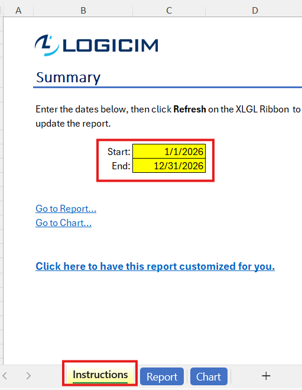
Step 2: Click Refresh on the XLGL ribbon to update the Report for the selected Sage 50 US company and date range.

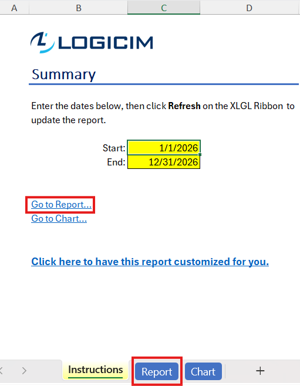
Step 3: Click Go to Report on Instructions, or select the Report worksheet, to review invoice rows grouped by customer.
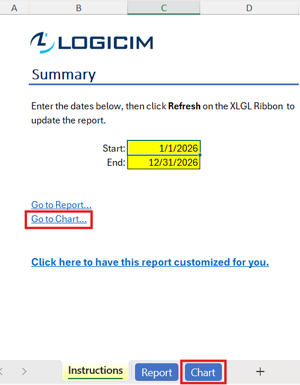
Step 4: Click Go to Chart on Instructions, or select the Chart worksheet, to review invoice amount and invoice count summaries.
Customization Options
Change the Start and End dates on Instructions to review a different invoice period. Use normal Excel formatting, filtering, or copied worksheet views for review copies. Keep the original formulas and hidden support worksheets intact. Use the customization link on Instructions or contact Logicim if you need additional fields, filters, grouping, or layout changes.
Common Use Cases
- Review customer invoice activity for a fiscal year or another selected date range.
- Compare invoice totals across customers by using the customer total rows on Report.
- Check invoice number, invoice date, amount paid, and invoice amount in one customer-grouped view.
- Use Chart to identify customers with the highest invoice amounts and months with the highest invoice counts.
Troubleshooting
Issue: The Report shows a different period than expected.
Solution: Confirm the Start and End dates on Instructions, then click Refresh on the XLGL ribbon.
Issue: Expected customers or invoices are missing.
Solution: Confirm that you are connected to the correct Sage 50 US company, verify the selected date range, and refresh the Report.
Issue: The chart does not appear to match the detail rows.
Solution: Refresh the Report after changing dates, then review Report before reviewing Chart.
Issue: You need columns that are not visible on Report.
Solution: Request a customization for Customer Invoice Log instead of editing formulas or hidden support worksheets directly.
FAQs
Q: Which dates control the Report?
A: The Start value in C8 and End value in C9 on Instructions control the period shown in the Report title and output.
Q: What does each customer total represent?
A: Each customer total row sums the Invoice Amount values listed for that customer in the selected period.
Q: Does the Report show payment information?
A: The visible output includes an Amount Paid column beside Invoice Amount for each invoice row.
Q: Does the workbook include charts?
A: Yes. The Chart worksheet shows total invoice amount by customer and the number of invoices issued per month.
Q: Can I add more customer or invoice fields?
A: Request a customization if you need fields beyond the visible Report columns.
Best Practices
- Confirm the connected Sage 50 US company before refreshing Customer Invoice Log.
- Review the Start and End dates before each refresh so the period in the title matches your intended review period.
- Use Report for invoice-level review before using Chart for trend or comparison review.
- Review negative invoice amount rows separately when reconciling customer activity.
- Keep a clean copy of the Ready-to-Use Report before making structural Excel changes.
References
Related articles
Edited: Thursday, September 24, 2026
Was this article helpful?
Thank you! Your feedback matters.