

Oops! Something went wrong with the browser.
Please try again. If the issue persists, contact support@logicimtech.com and include error code .
Logicim's Ready-to-Use Sage 50 US Employee Compensation
Employee Compensation
The Employee Compensation Report gives Sage 50 US users an employee-level overview of compensation and benefits awarded to employees. It is a Ready-to-Use Report in the Employees and Payroll catalog group.
Prerequisites
What the Report Does
The Report worksheet shows employee compensation details by Employee ID and Employee Name. The visible output includes Department, Pay Frequency, Pay Method, Hours Pay Per Period, Raise Date, Applicable Rate, Base Amount, Raise Amount, Raise Percentage, New Amount, and Raise Notes. The Chart worksheet summarizes Employee Salary Adjustments: New Amount by Employee Type and includes a Compensation Trends Over Time chart area.
How to Use the Report
Step 1: Click Refresh on the XLGL ribbon.

Step 2: Click Go to Report... to open the Report worksheet.
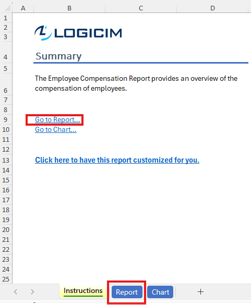
Step 3: Review the Report worksheet by employee. Use the visible columns to compare department, pay frequency, pay method, hours per pay period, raise date, base amount, raise amount, raise percentage, new amount, and raise notes.
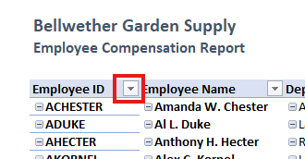
Step 4: Use the Excel filter controls in the Report worksheet to focus the output by fields such as Department, Pay Frequency, Pay Method, or Raise Date.
Step 5: Click Go to Chart... on the Instructions worksheet to open the Chart worksheet.
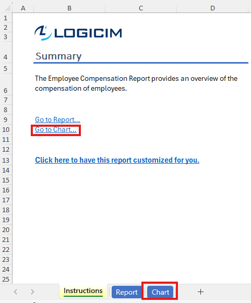
Step 6: Review the Chart worksheet to see amounts summarized by employee type and the chart area for compensation trends over time.
Customization Options
The workbook evidence shows navigation links and a customization link on the Instructions worksheet, but it does not show user-entered parameters. You can use standard Excel filtering on the Report worksheet to narrow the visible rows. For structural changes, additional columns, formula changes, or different chart layouts, use the customization option in the workbook or request a Custom Report from Logicim.
Common Use Cases
- Review employee compensation by employee ID, employee name, and department.
- Compare pay frequency, pay method, and hours pay per period across employees.
- Review raise dates, base amounts, raise amounts, raise percentages, new amounts, and raise notes during payroll or compensation reviews.
- Use the Chart worksheet to review salary adjustment totals by employee type and compensation trends over time.
Troubleshooting
- If the expected employees are not visible, check whether filters are applied on the Report worksheet.
- If the company name at the top of Report or Chart is not the company you intend to review, connect Logicim XLGL to the correct Sage 50 US company.
- If the Chart view does not support the comparison you need, review the detailed employee rows on Report and request customization for a different chart layout.
- If the built-in columns do not answer the compensation question you need, use the customization link on Instructions or contact Logicim about a Custom Report.
FAQs
Q: Can I filter the Report by department?
A: Yes. The Report worksheet includes Excel filter controls and a visible Department column.
Q: Does the Report show raise information?
A: Yes. The Report worksheet includes Raise Date, Raise Amount, Raise Percentage, New Amount, and Raise Notes.
Q: Does the workbook include charts?
A: Yes. The Chart worksheet includes Employee Salary Adjustments: New Amount by Employee Type and a Compensation Trends Over Time chart area.
Q: Can Logicim customize this Report?
A: Yes. The Instructions worksheet includes a customization link for this Report.
Best Practices
- Confirm the company name at the top of Report and Chart before using the results.
- Review active filters on Report before comparing departments, pay methods, or raise amounts.
- Use Employee ID with Employee Name when validating compensation details for a specific employee.
- Review the detailed Report worksheet before relying on chart summaries.
- Avoid changing the hidden Data and ChartData worksheets unless Logicim provides guidance on customization.
References
Related articles
Edited: Thursday, August 27, 2026
Was this article helpful?
Thank you! Your feedback matters.