

Oops! Something went wrong with the browser.
Please try again. If the issue persists, contact support@logicimtech.com and include error code .
Logicim's Ready-to-Use Sage 50 US Income Statement
Income Statement
Introduction
Income Statement is a financial report that summarizes a company's revenues, expenses, and profits over a specific period. It helps evaluate the business's financial performance by showing whether it generated a profit or incurred a loss.
Prerequisites
Microsoft Windows 10 Pro, Windows 11 Pro, or Windows Terminal Server (2012 and above)
Microsoft Office 365
Sage 50 Canadian edition (2014 and above)
Internet connection
What the Report Does
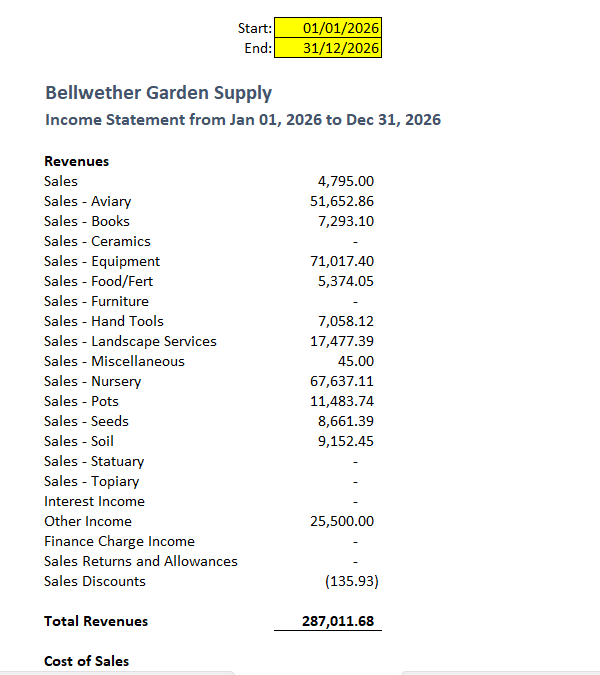
This report provides a summary of revenues, expenses, and net income for a selected period. The results are dynamically adjusted based on the start and end dates chosen by the user, allowing for analysis of financial performance over any specified timeframe.
How to Use the Report
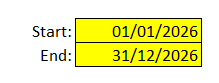
In Income Statement tab, enter the starting and end dates in D2 and D3.
Click Refresh on the XLGL ribbon.
Review the result:
Income Statement
Customization Options
Adjust the desired date period in the Parameters sheet to generate data for a different period.
Common Use Cases
Review profitability and financial performance for a specific period.
Compare income and expenses across different date ranges.
Support financial reporting and management decision-making.
Troubleshooting
Issue: No data is populated.
Solution: Verify that the input parameters are correct and that the selected date range contains existing records.
FAQs
Q: How to see the corresponding account number of the account name?
A: Simple unhide the column B by highlight the entire column A and C, then right click, then click Unhide.
Best Practices
Save a backup copy of the Report before making significant changes.
Regularly review the report to track progress and identify trends early.
Customize the report to focus on key performance indicators relevant to your business.
Related Articles
References
Related articles
Edited: Monday, August 31, 2026
Was this article helpful?
Thank you! Your feedback matters.