

Oops! Something went wrong with the browser.
Please try again. If the issue persists, contact support@logicimtech.com and include error code .
Logicim's Ready-to-Use Sage 50 US Income Statement with Budgets
Introduction
The Income statement with budgets combines actual financial performance with budgeted values for a complete view of your organization’s fiscal health. This Report enables businesses to track income, expenses, and profitability while comparing actual results against predefined budgets.
Prerequisite
- Microsoft Windows 10 Pro, Windows 11 Pro, or Windows terminal server (2012 and above)
- Microsoft Office 365
- Sage 50 US edition (2021 and above)
- Internet connection
What the Report does
This report provides:
- Comparison of actual vs. budget: Displays actual values alongside budgeted figures.
- Variance analysis: Highlights discrepancies between actual and budgeted amounts.
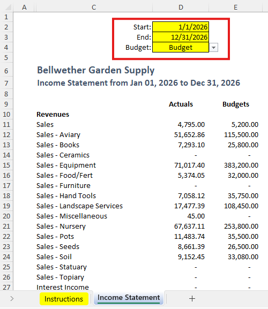
- Flexible parameters: allow users to define the reporting period (start and end dates) and select the budget category for comparison.
How to use the Report
Step 1) Go to the Income Statement worksheet.
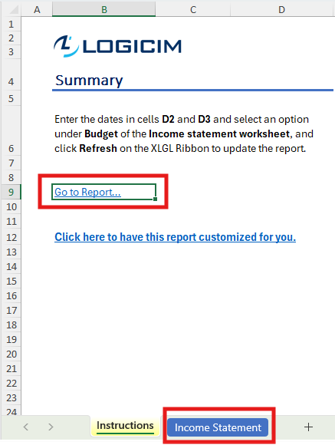
Step 2) Enter the start date and end date, and select the budget category from the dropdown or list provided.
Step 3) Click the Refresh data button (if applicable) to update the report.

Common use cases
- Monthly budget reviews to identify over- or under-performing areas.
- Quarterly board presentations showcase financial progress against the budget.
- Year-end financial analysis for strategic planning.
Troubleshooting
- Issue: Report not generating data.
- Solution: Ensure all parameters (start date, end date, and budget) are filled in correctly.
- Issue: Variance calculation errors.
- Solution: Verify that the formulas in the variance columns are consistent and reference the correct actual and budget cells.
Best practices
Update budget figures and actual data regularly to ensure accuracy. Save a backup of the report before applying major modifications.
Supporting Articles
See also: Comparative income statement, Income statement 12 periods
References
Related articles
Edited: Thursday, September 24, 2026
Was this article helpful?
Thank you! Your feedback matters.