

Oops! Something went wrong with the browser.
Please try again. If the issue persists, contact support@logicimtech.com and include error code .
Logicim's ready-to-use Sage 50 US Inventory Assemblies on Order
Inventory Assemblies on Order
The Inventory Assemblies on Order Report provides a detailed overview of inventory assemblies currently on order. Review main assembly items, ordered quantities, individual subcomponents, and multi-level component structures to support inventory planning and order fulfillment.
Prerequisites
- Microsoft Windows 10 Pro, Windows 11 Pro, or Windows Terminal Server (2012 and above)
- Microsoft Office 365
- Sage 50 US edition (2021 and above)
- Internet connection
What the Report Does
The Inventory Assemblies on Order Report displays assembly and component information in a consolidated view. Review main item names, quantities ordered, sub-item components, component levels, associated costs, and quantities on hand. Compare the quantity required for each assembly with the available inventory to identify potential component shortages.
How to Use the Report
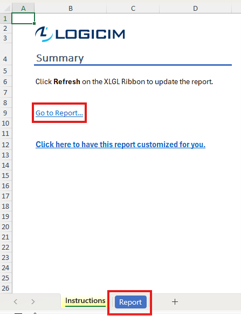
Step 1: Click Refresh on the XLGL ribbon to update the Report.

Step 2: Open the Report worksheet and review the assembly items, ordered quantities, subcomponents, component levels, costs, and quantities on hand.
Step 3: Compare the ordered and required quantities with the available quantities to identify components that may need reordering.
Customization Options
- Use the column filters on the Report worksheet to display specific main item names, sub-item names, quantities ordered, or quantities on hand.
- Request a customized version of the Report using the customization link on the Instructions worksheet or through the Custom Reports page.
Common Use Cases
Use this Report to plan production runs, confirm that required subcomponents are available before beginning an assembly, and identify potential shortages associated with pending assembly orders. It can also help purchasing teams review component dependencies and determine which inventory items may need to be reordered.
Troubleshooting
Issue: The Report displays zero values or no assembly information.
Solution: Click Refresh on the XLGL ribbon and confirm that assembly orders and component quantities are available in Sage 50.
FAQs
Q: Why does the Report appear blank after applying filters?
A: Clear the active column filters, then click Refresh on the XLGL ribbon to reload the Report data.
Best Practices
- Save a backup copy of the Report before making significant changes.
- Refresh and review the Report regularly to identify component shortages before beginning production.
- Use filters to focus on specific assembly items, components, or quantity ranges.
- Compare required quantities with quantities on hand before placing additional purchase orders.
Related articles
Edited: Thursday, August 20, 2026
Was this article helpful?
Thank you! Your feedback matters.