

Oops! Something went wrong with the browser.
Please try again. If the issue persists, contact support@logicimtech.com and include error code .
Logicim's ready-to-use Sage 50 US Inventory on Hand Analysis
Inventory on Hand Analysis
The Inventory on Hand Analysis Report provides a detailed overview of inventory transactions and current stock levels. Review average costs, selling prices, quantities on hand, pending purchase orders, current sales orders, and estimated reorder quantities.
Prerequisites
- Microsoft Windows 10 Pro, Windows 11 Pro, or Windows Terminal Server (2012 and above)
- Microsoft Office 365
- Sage 50 US edition (2021 and above)
- Internet connection
What the Report Does
The Report organizes detailed inventory transactions and key financial metrics into a single view. Compare average costs with selling prices, review current quantities on hand, and compare pending purchase orders with current sales orders to determine potential reorder quantities.
How to Use the Report
Step 1: Enter the Start Date and End Date in cells C8 and C9 on the Instructions worksheet.
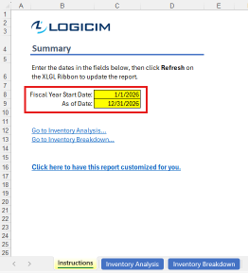
Step 2: Click Refresh on the XLGL ribbon.

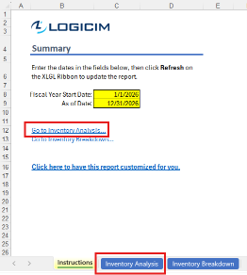
Step 3: Click Go to Inventory Analysis... to review the analysis
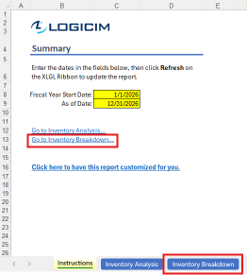
Step 4: Click Go to Inventory Breakdown... to review the breakdown
Customization Options
- Use the filter drop-down arrows on the Report worksheet to filter specific Item Classes, Locations, Item Types, Item IDs, and other available fields.
- Request a customized version by using the customization link on the Instructions worksheet or by selecting Request a Custom Report.
Common Use Cases
Use this Report to monitor inventory transactions and current stock levels, compare average costs with selling prices, identify potentially profitable items, and assess quantities on hand before placing new purchase orders.
Troubleshooting
Issue: Zero values appear on the worksheet.
Solution: Verify that the selected date range contains inventory activity and that the End Date in cell C9 is later than or equal to the Start Date in cell C8. Click Refresh after correcting the dates.
FAQs
Q: Why does the Report appear blank after applying a filter?
A: Click Refresh on the XLGL ribbon to update the Report after changing the filters.
Best Practices
- Save a backup copy of the Report before making significant changes.
- Review the Report regularly to monitor inventory levels and identify trends early.
- Use filters to focus on the inventory classes, locations, item types, and items that are relevant to your analysis.
Related articles
Edited: Thursday, August 20, 2026
Was this article helpful?
Thank you! Your feedback matters.