

Oops! Something went wrong with the browser.
Please try again. If the issue persists, contact support@logicimtech.com and include error code .
Logicim's ready-to-use Sage 50 US Inventory Stock Status
Inventory Stock Status
The Inventory Stock Status Report provides a comprehensive overview of current inventory levels for Sage 50 US. It compares quantities on hand with minimum stock levels and reorder quantities to help you identify items that may require replenishment.
Prerequisites
- Microsoft Windows 10 Pro, Windows 11 Pro, or Windows Terminal Server (2012 and above)
- Microsoft Office 365
- Sage 50 US edition (2021 and above)
- Internet connection
What the Report Does
The Inventory Stock Status Report provides an optimized view of current inventory quantities, minimum stock levels, and reorder quantities. Review Item IDs, descriptions, stocking units, quantities on hand, minimum stock levels, and reorder quantities in one place. Use this information to identify items that may require replenishment.
How to Use the Report
Step 1: Click Refresh on the XLGL ribbon to update the Report.

Step 2: Review the inventory information on the Inventory Stock Status worksheet.
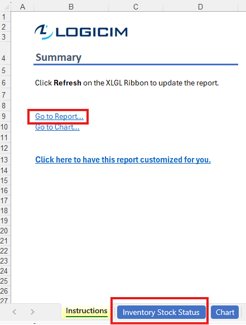
Step 3: Review the inventory summary on the Chart worksheet.
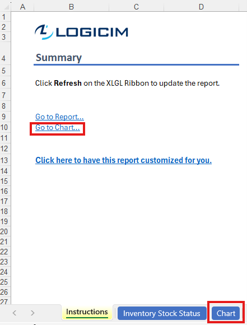
Customization Options
- Use the column filter arrows on the Report worksheet to filter by Item Class, Item ID, Stocking Unit, or stock status.
- Use the Item Class filter to review specific product categories, such as Aviary, Books, Equipment, Fertilizer, Nursery, Pots, Seeds, Soil, or Tools.
- Request a customized version through the customization link on the Instructions worksheet or by using this link.
Common Use Cases
Use this Report to evaluate inventory replenishment requirements and identify items with on-hand quantities below their minimum stock levels. Review the results before preparing purchase orders to support appropriate stock levels and reduce potential fulfillment delays.
Troubleshooting
Issue: The Report appears blank or does not display updated values.
Solution: Click Refresh on the XLGL ribbon to update the Report.
Issue: Expected inventory items are missing from the Report.
Solution: Review the active filters on the Inventory Stock Status worksheet and clear or adjust any filters that exclude the required items.
FAQs
Q: How can I display only specific inventory items?
A: Use the filter arrow on the appropriate column to filter by Item Class, Item ID, Stocking Unit, or stock status.
Q: What should I do when the Report appears blank after changing a filter?
A: Review and clear the active filters, then click Refresh on the XLGL ribbon.
Best Practices
- Save a backup copy of the Report before making significant changes.
- Review the Report regularly to identify inventory items approaching or falling below their minimum stock levels.
- Review active filters before using the Report results to make purchasing decisions.
References
Logicim Ready-to-Use Sage 50 US Report - Inventory Stock Status (YouTube)
Related articles
Edited: Thursday, September 24, 2026
Was this article helpful?
Thank you! Your feedback matters.