

Oops! Something went wrong with the browser.
Please try again. If the issue persists, contact support@logicimtech.com and include error code .
Logicim's ready-to-use Sage 50 US Invoice Register
Invoice Register
The Invoice Register Report provides a summary of all processed invoices and credit memos within a selected period. It helps you track billing transactions, verify records, and accurately monitor invoicing activity.
Prerequisites
- Microsoft Windows 10 Pro, Windows 11 Pro, or Windows Terminal Server (2012 and above)
- Microsoft Office 365
- Sage 50 US edition (2021 and above)
- Internet connection
What the Report Does
The Invoice Register Report displays invoice and credit memo details, including transaction dates, invoice numbers, quote numbers, descriptions, pre-tax amounts, sales tax, and total amounts. It also provides monthly summaries showing the number of invoices issued and the total invoiced amount for each month.
How to Use the Report
Step 1: Enter the start date in C8 and the end date in C9.
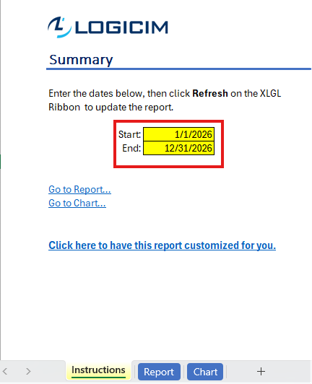
Step 2: Click Refresh on the XLGL ribbon to update the Report.

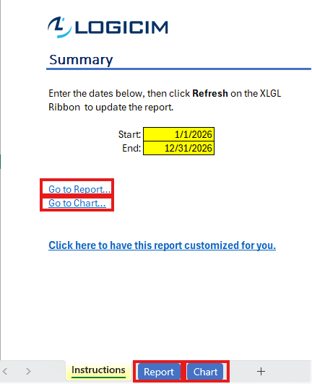
Step 3: Review the transaction details on the Report worksheet and the monthly summary on the Chart worksheet.
Customization Options
- Adjust the desired year on the Parameters worksheet to generate data for a different reporting period.
- Use the AutoFilter arrows to filter the Report by the values in a selected column.
- Request a customized version of the Report by using this link.
Common Use Cases
- Track invoice and credit memo transactions within a selected date range.
- Review monthly invoice activity, transaction counts, and invoiced totals.
- Verify billing records and support financial reconciliation and reporting.
Troubleshooting
Issue: No data appears after refreshing the Report.
Solution: Verify that the dates entered in C8 and C9 are correct and that transactions exist within the selected date range.
Issue: Some expected transactions do not appear in the Report.
Solution: Review the active filters on the Report worksheet and clear any filters that exclude the required transactions.
FAQs
Q: How can I filter the Report?
A: Click the AutoFilter arrow on the appropriate column and select the values you want to display.
Q: Can I generate the Report for a different period?
A: Enter the required start and end dates in C8 and C9, then click Refresh on the XLGL ribbon.
Best Practices
- Save a backup copy of the Report before making significant changes.
- Confirm the dates in C8 and C9 before refreshing the Report.
- Review active filters before using the Report totals for reconciliation or financial reporting.
- Review monthly invoice counts and totals regularly to identify changes in invoicing activity.
References
Logicim Ready-to-Use Sage 50 US Report - Invoice Register (YouTube)
Related articles
Edited: Friday, September 25, 2026
Was this article helpful?
Thank you! Your feedback matters.