

Oops! Something went wrong with the browser.
Please try again. If the issue persists, contact support@logicimtech.com and include error code .
Logicim's ready-to-use Sage 50 US Item List
Item List
The Item List Report provides a comprehensive overview of your inventory catalogue in Sage 50 US. Review stock items, services, assemblies, serialized items, and master or substock items, along with their current quantities on hand.
Prerequisites
- Microsoft Windows 10 Pro, Windows 11 Pro, or Windows Terminal Server (2012 and above)
- Microsoft Office 365
- Sage 50 US edition (2021 and above)
- Internet connection
What the Report Does
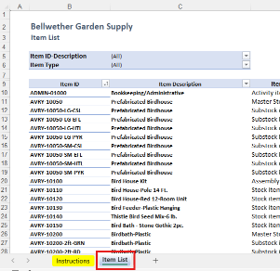
The Item List Report displays detailed item information in an optimized view. Review Item IDs, descriptions, item classes, item statuses, and total quantities on hand in one place. Use the Report to track inventory across stock items, assemblies, serialized items, service items, and other item types.
How to Use the Report
Step 1: Click Refresh on the XLGL ribbon to update the Report.

Step 2: Review the item details and quantities on hand on the Item List worksheet.
Customization Options
- Use the column filter arrows on the Report worksheet to filter by Item ID-Description or Item Type.
- Use standard Excel features to sort the columns and organize the item information as needed.
- Request a customized version through the customization link on the Instructions worksheet or by using this link.
Common Use Cases
- Review all inventory and service items maintained in Sage 50 US.
- Compare quantities on hand across different item types.
- Verify item descriptions, classifications, and statuses.
- Review inventory availability before preparing purchase orders or inventory adjustments.
Troubleshooting
Issue: The Report appears blank or does not display updated item information.
Solution: Click Refresh on the XLGL ribbon to update the Report.
Issue: Some expected items are missing from the Report.
Solution: Review the active filters on the Report worksheet and clear or adjust any filters that exclude the required items.
FAQs
Q: How can I display only a specific item type?
A: Use the filter arrow in the Item Type column and select the item types you want to display.
Q: How can I find a specific item?
A: Use the filter arrow in the Item ID-Description column to search for or select the required item.
Best Practices
- Save a backup copy of the Report before making significant changes.
- Refresh the Report before reviewing on-hand quantities or item statuses.
- Review active filters before using the Report results for inventory planning.
- Review the Item List regularly to identify outdated, inactive, or incorrectly classified items.
References
Logicim Ready-to-Use Sage 50 US Report - Item List (YouTube)
Related articles
Edited: Thursday, September 24, 2026
Was this article helpful?
Thank you! Your feedback matters.