

Oops! Something went wrong with the browser.
Please try again. If the issue persists, contact support@logicimtech.com and include error code .
Logicim's ready-to-use Sage 50 US Job Register
Job Register
The Job Register Report provides a detailed overview of project transactions. Use the Report to review job activity, compare estimated revenue and expenses with actual results, and evaluate project progress.
Prerequisites
- Microsoft Windows 10 Pro, Windows 11 Pro, or Windows Terminal Server (2012 and above)
- Microsoft Office 365
- Sage 50 US edition (2021 and above)
- Internet connection
What the Report Does
The Job Register Report displays detailed project transactions and financial information in an optimized view. Review journal entries, completion percentages, vendor activity, and payment statuses for specific jobs.
Compare estimated revenue and expenses with actual project performance to monitor progress and evaluate profitability.
How to Use the Report
Step 1: Enter the start date in C8 and the end date in C9 on the Instructions worksheet.
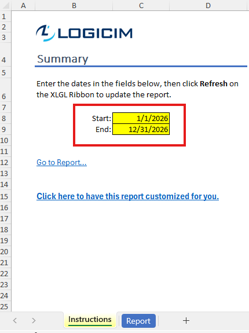
Step 2: Click Refresh on the XLGL ribbon to update the Report.

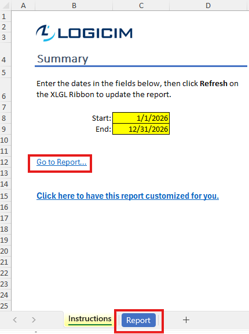
Step 3: Review the project transactions, estimated amounts, actual amounts, completion percentages, and payment statuses on the Report worksheet.
Customization Options
- Use the drop-down arrows on the Report worksheet to filter by Job ID, Phase ID, Vendor ID, Payment Status, or other visible fields.
- Change the reporting period by entering different dates in C8 and C9, then refresh the Report.
- Request a customized version through the customization link on the Instructions worksheet or by using this link.
Common Use Cases
- Review detailed project transaction histories for a selected period.
- Compare estimated revenue and expenses with actual project results.
- Review vendor payments and payment statuses associated with specific jobs.
- Track project progress using completion percentages and transaction details.
Troubleshooting
Issue: Zero values appear on the worksheet.
Solution: Confirm that your Sage 50 US account has permission to access the Accounts and General Ledger information required by the Report.
Issue: The Report does not display the expected reporting period.
Solution: Verify that the end date in C9 is later than the start date in C8, then click Refresh on the XLGL ribbon.
Issue: The Report appears blank after applying filters.
Solution: Review or clear the active filters, then click Refresh on the XLGL ribbon.
Issue: Expected jobs, vendors, or transactions are missing.
Solution: Review the active filters on the Report worksheet and clear or adjust any filters that exclude the required records.
FAQs
Q: Can I display transactions for a specific job?
A: Yes. Use the Job ID filter to display transactions associated with the required job.
Q: Can I review transactions for a specific project phase?
A: Yes. Use the Phase ID filter to isolate the required project phase.
Q: Can I review vendor activity or payment status?
A: Yes. Use the Vendor ID or Payment Status filters to display the required records.
Q: What should I do if the Report appears blank?
A: Review and clear the active filters, then click Refresh on the XLGL ribbon.
Best Practices
- Verify the dates in C8 and C9 before refreshing the Report.
- Review active filters before using the Report results for project analysis.
- Regularly compare estimated amounts with actual results to monitor project performance.
- Review vendor and payment information before completing project financial reviews.
- Save a separate copy before making structural changes to the workbook.
References
Logicim Ready-to-Use Sage 50 US Report - Job Register (YouTube)
Related articles
Edited: Thursday, September 24, 2026
Was this article helpful?
Thank you! Your feedback matters.