

Oops! Something went wrong with the browser.
Please try again. If the issue persists, contact support@logicimtech.com and include error code .
Logicim's Ready-to-Use Sage 50 CA Gain or Loss
Gain or Loss
Introduction
A Gain or Loss report summarizes the profit or loss generated from the sale or disposal of assets, investments, or other transactions during a specified period.
Prerequisites
Microsoft Windows 10 Pro, Windows 11 Pro, or Windows terminal server (2012 and above)
Microsoft Office 365
Sage 50 Canadian edition (2014 and above)
Internet connection
What the Report Does
This report compares the selling value against the original cost or book value of an asset or transaction to determine whether a gain (profit) or loss occurred. It helps businesses track financial performance and assess the impact of asset disposals on profitability.
How to Use the Report
Select Current or Previous in C8, then put the date in C9.
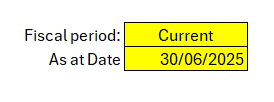
Click Refresh on the XLGL ribbon.
Review the result in Report tab:
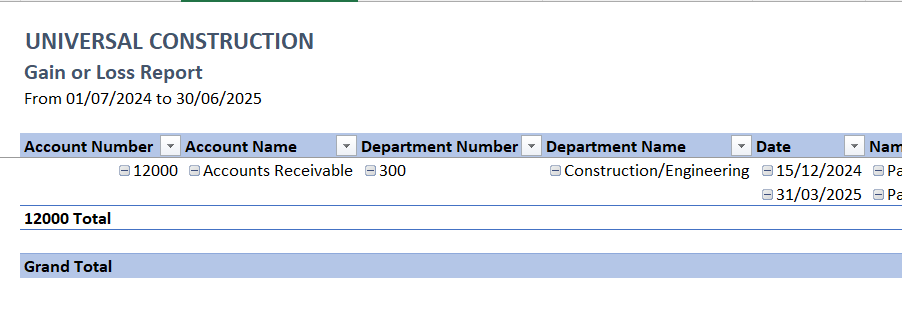
Customization Options
Adjust the desired year in the Parameters sheet to generate data for a different period.
Select the column and row you want to filter by clicking the Autofilter
Common Use Cases
Calculate profit or loss from asset sales.
Track gains and losses for financial reporting.
Support tax preparation and accounting analysis.
Troubleshooting
Issue: No data is populated.
Solution: Verify that the input parameters are correct and that the selected date range contains existing records.
FAQs
Q: How can I filter the report?
A: Click the arrow on any column to access the pivot table filtering option.
Best Practices
Save a backup copy of the Report before making significant changes.
Regularly review the report to track progress and identify trends early.
Customize the report to focus on key performance indicators relevant to your business.
Related Articles
References
Related articles
Edited: Monday, August 31, 2026
Was this article helpful?
Thank you! Your feedback matters.