

Oops! Something went wrong with the browser.
Please try again. If the issue persists, contact support@logicimtech.com and include error code .
Logicim’s ready-to-use Sage 50 CA vendor aging
Vendor aging
This Report displays vendors and their aging amounts.
Prerequisite
- Logicim XLGL version 5.0 or higher
- Microsoft Excel 2016 or higher
- Sage 50 Canadian Edition (2014 and above)
What the Report does
The Vendor aging Report presents you with a complete list of your vendors with or without aging values. A contact matrix is also available. Aging values are partitioned by aging days, with additional vendor statistics.
How to use the Report
- Enter the date in cell H4, the terms in cell I4, and the currency from L4 on the AP Aging+worksheet.
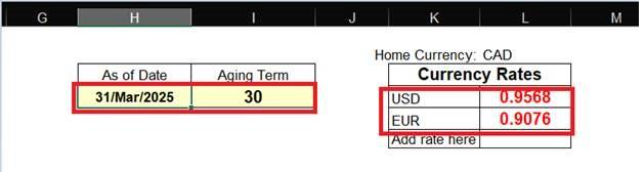
- After entering these, click the Refresh button on the XLGL ribbon.

Common use cases
This Report is useful in summarizing your vendors and their aging values if there are any. This Report also highlights a partition for the aging values based on the aged day and the currency allotted for that vendor. A contact matrix as recorded in Sage 50, is available to follow up on aged values.
Troubleshooting
- Issue A: No values appear on the worksheet.
- Solution A: Ensure that your account has the necessary permissions to access the Accounts & General ledger.
- Issue B: Values on the AP Aging+ worksheet are wrong.
- Solution B: Make sure that you are connected to the right company.
FAQs
- Q: Is there a way to customize the Report myself, such as only seeing the vendors which has aging values?
- A: Yes! The Report works like a normal Excel file, and rows can be deleted or hidden.
- Q: I have vendors who use other currencies, can I put that on the list as well?
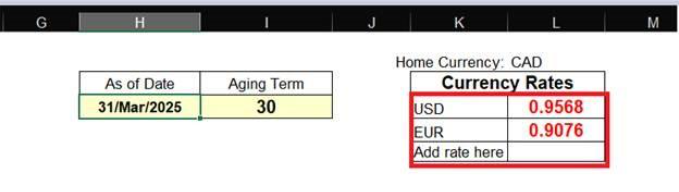
- A: Yes! Starting from Cell K4 on the AP Aging+ worksheet, add the currency code as what is in your Sage50. Starting from Cell L4, input the exchange rate based on CAD versus the added currency.
Best practices
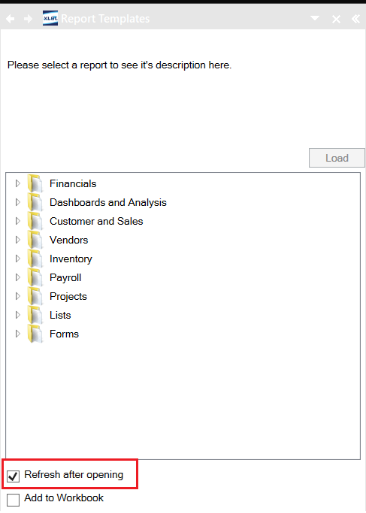
Keep in mind to connect to the correct company before loading this Report. Also, ensure that the Refresh after opening checkbox is checked. This delivers company-accurate data and saves you some steps such as clicking the Refresh button on the XLGL ribbon.
Related articles
Edited: Thursday, September 24, 2026
Was this article helpful?
Thank you! Your feedback matters.