

Oops! Something went wrong with the browser.
Please try again. If the issue persists, contact support@logicimtech.com and include error code .
Logicim's Ready-to-Use Sage 50 CA Commissions by Percentage
Commissions by Percentage
Introduction
The Commissions by Percentage Report calculates sales commissions for a selected date range using a commission percentage entered in the workbook.
Prerequisites
- Microsoft Windows 10 Pro, Windows 11 Pro, or Windows terminal server (2012 and above)
- Microsoft Office 365
- Sage 50 Canadian edition (2014 and above)
- Internet connection
What the Report Does
The Report worksheet shows a Sales Commission Report for the period selected on Instructions. It lists Date, Customer Name, Customer Contact, Phone, Salesperson, Source, Last Invoice Date, Invoice Amount, Paid Amount, and Commission, with a Grand Total row. The Chart worksheet shows Commission Earned by Sales Representative and Monthly Sales. The CA Ready-to-Use catalog places this Report under Customer and Sales / Others and describes it as a Report that calculates commissions based on a specified percentage of invoice or payment amounts.
How to Use the Report
1. Enter the Start Date in cell C8 and the End Date in cell C9 on the Instructions worksheet.
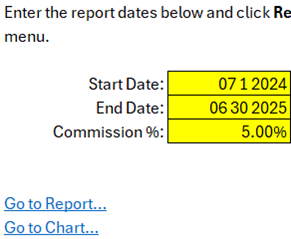
Date range and commission percentage inputs on the Instructions worksheet.
2. Enter the commission percentage in cell C10 on the Instructions worksheet, then click Refresh on the XLGL menu.
3. Click the button labeled Go to Report... or open the Report worksheet to review the Sales Commission Report output.
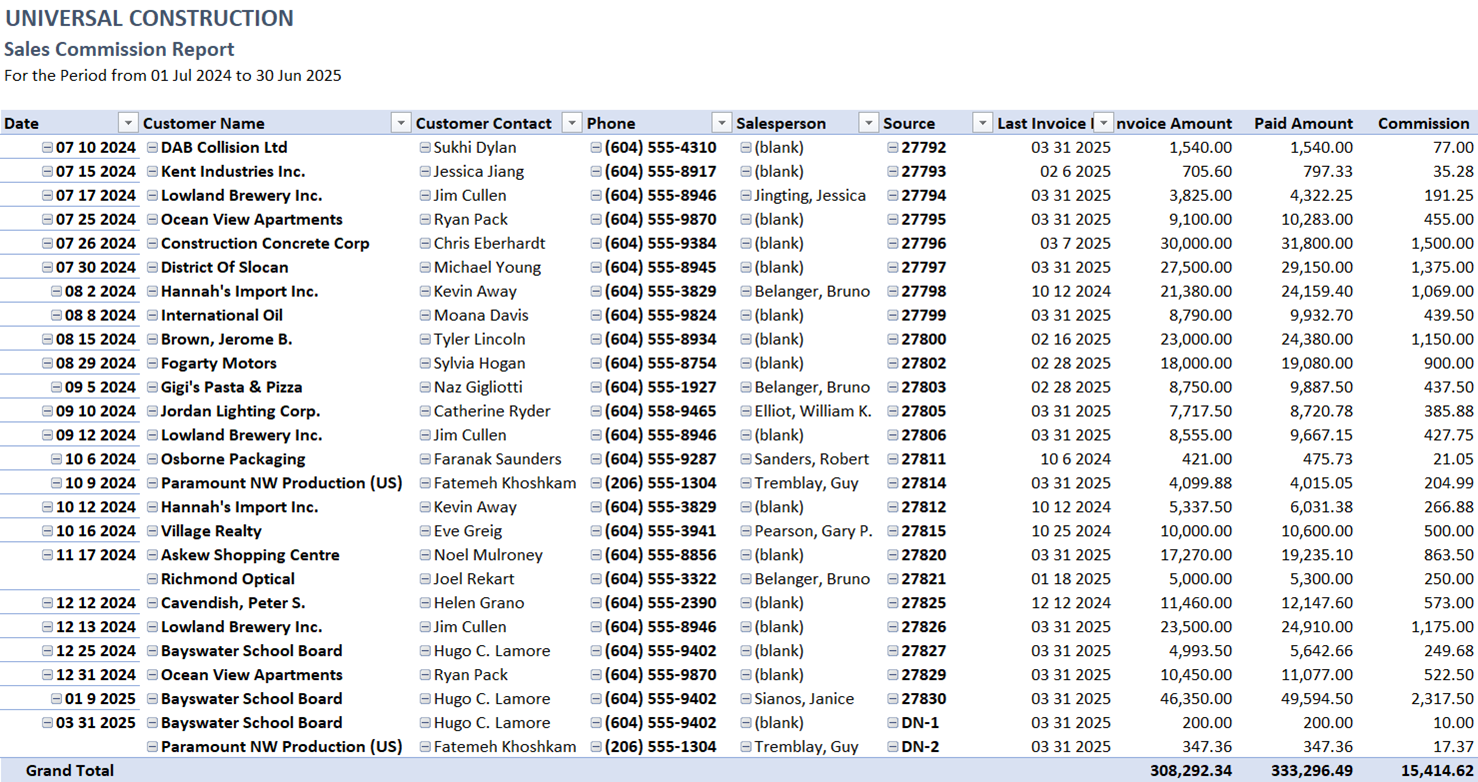
Sales Commission Report output with customer, invoice, payment, and commission columns.
4. Click the button labeled Go to Chart... or open the Chart worksheet to review the commission and monthly sales charts.
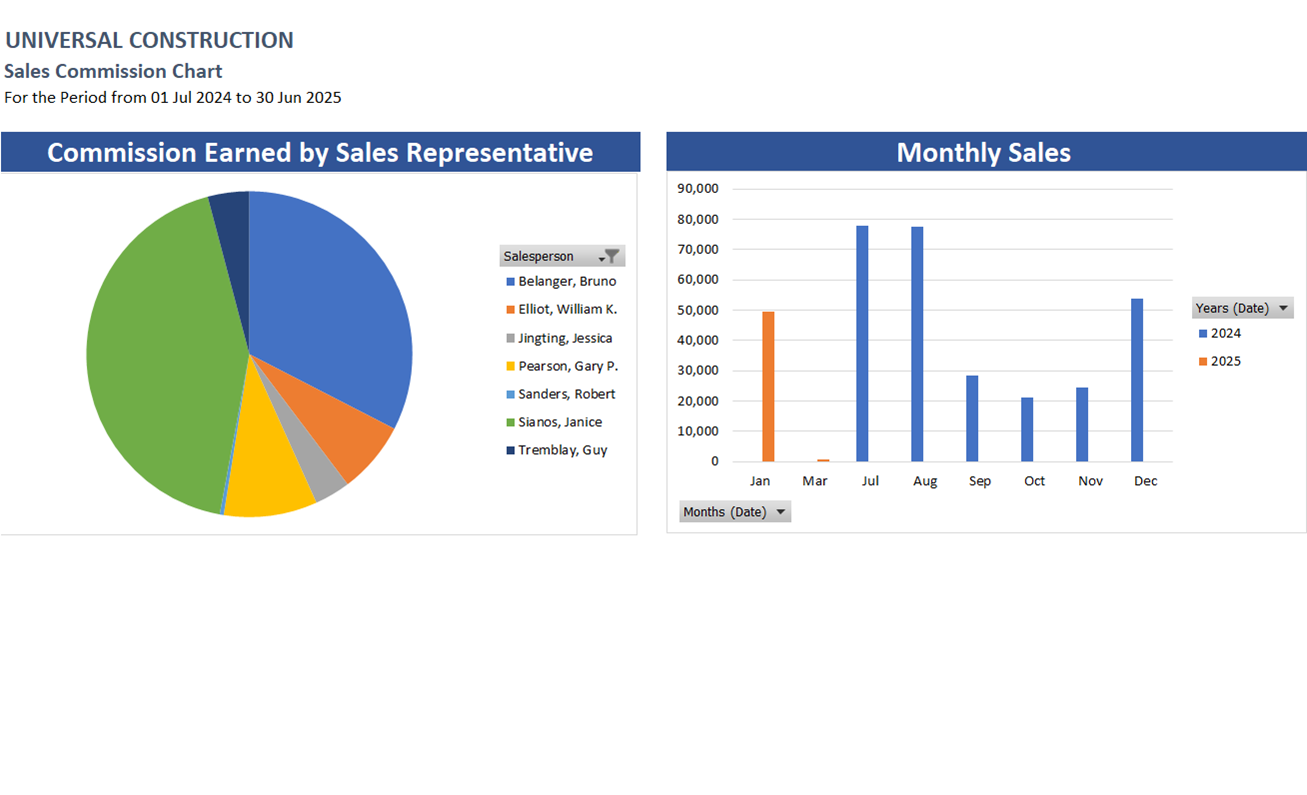
Chart worksheet showing Commission Earned by Sales Representative and Monthly Sales.
Customization Options
You can adjust the date range in cells C8:C9 and the commission percentage in cell C10 on the Instructions worksheet before refreshing the Report. For structural changes, use the workbook's customization link or request customization instead of changing hidden worksheets or formulas.
Common Use Cases
- Review sales commissions for transactions within a selected period.
- Compare invoice amounts, paid amounts, and calculated commissions in one Report output.
- Review commission distribution by salesperson using the Chart worksheet.
- Compare monthly sales activity using the Monthly Sales chart.
Troubleshooting
Issue: The period shown on the Report or Chart worksheet is not the expected period.
Solution: Check the Start Date in cell C8 and the End Date in cell C9 on Instructions, then click Refresh on the XLGL menu.
Issue: The commission amounts do not match the expected percentage.
Solution: Check the commission percentage in cell C10 on Instructions, refresh the Report, and compare the Invoice Amount and Commission columns.
Issue: You are viewing the input page instead of the output.
Solution: Use Go to Report... for the Report worksheet or Go to Chart... for the Chart worksheet.
FAQs
Q: Which inputs control this Report?
A: Instructions!C8 controls the Start Date, Instructions!C9 controls the End Date, and Instructions!C10 controls the commission percentage.
Q: What output columns are visible on the Report worksheet?
A: The visible columns include Date, Customer Name, Customer Contact, Phone, Salesperson, Source, Last Invoice Date, Invoice Amount, Paid Amount, and Commission.
Q: What does the Chart worksheet show?
A: It shows Commission Earned by Sales Representative and Monthly Sales.
Q: Does the workbook use hidden support worksheets?
A: Yes. The workbook contains hidden Data and ChartData worksheets that support the visible Report and Chart outputs.
Best Practices
- Confirm the date range and commission percentage before refreshing the Report.
- Review the Grand Total row on the Report worksheet after refreshing.
- Use the Report worksheet for detailed transaction review and the Chart worksheet for visual commission and sales analysis.
- Keep formula and hidden-worksheet changes for approved customization work.
References
Related articles
Edited: Monday, August 31, 2026
Was this article helpful?
Thank you! Your feedback matters.